How to Start a Timer for a Task and Focus on It Fullscreen
Start a timer for a specific task, focus on it in a distraction-free full-page view, and optionally add the session to your calendar with BreakToGoal.
Sometimes you already know exactly what you need to do.
You don't need another to-do list, a complicated productivity system, or a new planning method. You just want to choose one task, give it a block of time, put the timer somewhere you can see it, and start working.
A simple workflow looks like this:
Choose a task → set the time → start the timer → focus on that task until the session ends.
You can do this with a fullscreen task timer instead of using a traditional Pomodoro timer.
What is a task timer?
A task timer is simply a timer attached to something specific you want to work on.
Instead of starting a generic 25-minute focus session, you might start:
- Write landing page copy — 45 minutes
- Review chapter 4 — 30 minutes
- Fix mobile navigation — 60 minutes
- Practice Spanish — 20 minutes
The important part is that the timer and the task stay together.
You are not only looking at 42:16 remaining. You also have a clear answer to:
What am I supposed to be doing during those 42 minutes?
That small difference can make a focus session feel much more concrete.
You don't have to use the Pomodoro Technique
Pomodoro is useful, but a task timer does not have to follow the familiar 25 minutes of work followed by a short break.
Some tasks naturally fit into 15 minutes.
Others need 40 minutes before you really get into them.
Writing, coding, studying, designing, reading, or working through a difficult problem may make more sense as a longer uninterrupted block.
Instead of fitting the task into a predefined timer, you can fit the timer to the task.
For example:
- 20 minutes: Reply to important emails
- 30 minutes: Review class notes
- 45 minutes: Write an article section
- 60 minutes: Work on a coding session
- 90 minutes: Do deep research
There is no perfect duration.
The useful question is:
How much time do I want to give this task right now?
How to start a timer for a specific task
You only need three things:
- A clear task
- A start and end time
- A timer that stays visible while you work
You can use BreakToGoal's free Full Screen Countdown Timer without creating an account.
1. Name the thing you want to focus on
Instead of starting with a blank countdown, give the session a task name.
For example:
Finish the pricing page
or:
Read chapter 6
or simply:
Study
The task name is optional, but it gives the timer context.
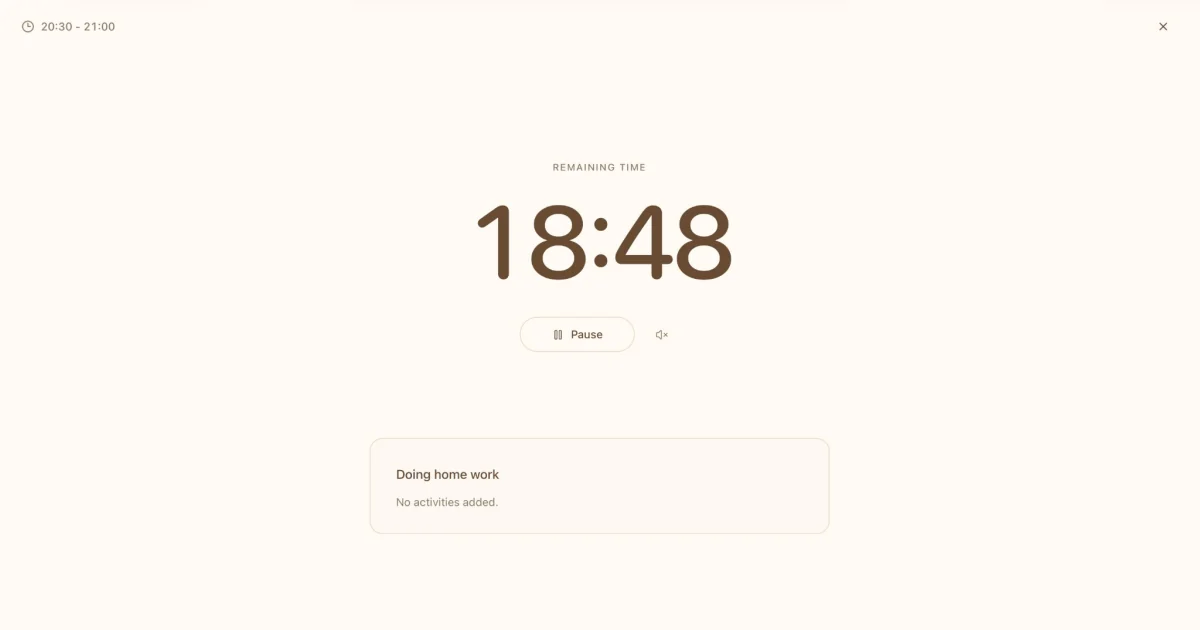
Once the session starts, your task and the remaining time stay together in the focus view.
2. Choose your focus window
Choose when you want to start and when you want to stop.
You can start now or set a session for later in the day.
For example:
2:00 PM → 2:45 PM
That gives the task a clear boundary.
You are not promising to finish your entire project in 45 minutes. You are only deciding what you will work on during that period.
3. Open the focus timer
Start the countdown and keep it open while you work.
The timer uses a large, simple view so the two things that matter most remain visible:
your task + the time remaining
You can pause the session when you need to step away and resume it later.
The focus view fills the webpage rather than removing your browser's own controls, so you can still leave or switch tabs whenever you need to.
Why putting the task next to the timer helps
A normal countdown tells you:
How much time is left?
A task timer answers two questions:
How much time is left?
and:
What am I using this time for?
That distinction becomes useful when you are working from a long task list.
Without it, it is easy to start a timer and still jump between email, documentation, messages, and several different tasks.
Giving the session a name creates a simple constraint:
For this block of time, this is the thing I am doing.
You can still stop or change course when necessary. The timer is not there to trap you.
Its job is simply to make the current commitment visible.
A timer can help with starting, not just tracking
Timers are often treated as measurement tools.
You start working, turn on a timer, and later look at how much time you spent.
But a countdown can also work in the opposite direction.
Instead of:
start working → track the time
you can use:
choose the time → start the task
This makes the timer part of the transition from planning to execution.
Imagine that your to-do list says:
Work on homepage
That can still feel vague.
But this:
Work on homepage
10:00–10:45
is much easier to act on.
There is now a task, a beginning, and an end.
When a standalone fullscreen timer is enough
Not every focus session needs to become part of a productivity system.
Maybe you just need to study for the next hour.
Maybe you want to clean your desk for 15 minutes.
Maybe you need 30 focused minutes to finish something before lunch.
In those situations, open the timer, name the task, and start.
You don't need an account to use BreakToGoal's Full Screen Countdown Timer.
That is intentionally the simplest path.
But sometimes the task is already part of your plan.
That's where the workflow can go one step further.
Turn the focus session into a calendar event
Suppose you decide:
Write product documentation — 3:00 PM to 4:00 PM
If that block matters beyond the current session, you can choose Use in calendar instead of treating it as a disposable timer.
The same start and end times can become a calendar event on your Today page with the Day timeline open.
Later, when the event appears in your day's timeline, you can open its focus view again from the event.
The workflow becomes:
Plan the task → put it on the calendar → open the timer → focus
This removes a small but common gap between planning something and actually beginning it.
A calendar normally answers:
What should I be doing at 3 PM?
A focus timer answers:
What should I be doing right now?
Connecting the two means you don't have to recreate the task when it is time to work.
From a task timer to a larger goal
Sometimes the task is also one small part of something bigger. BreakToGoal's Targets workspace keeps that connection visible.
For example:
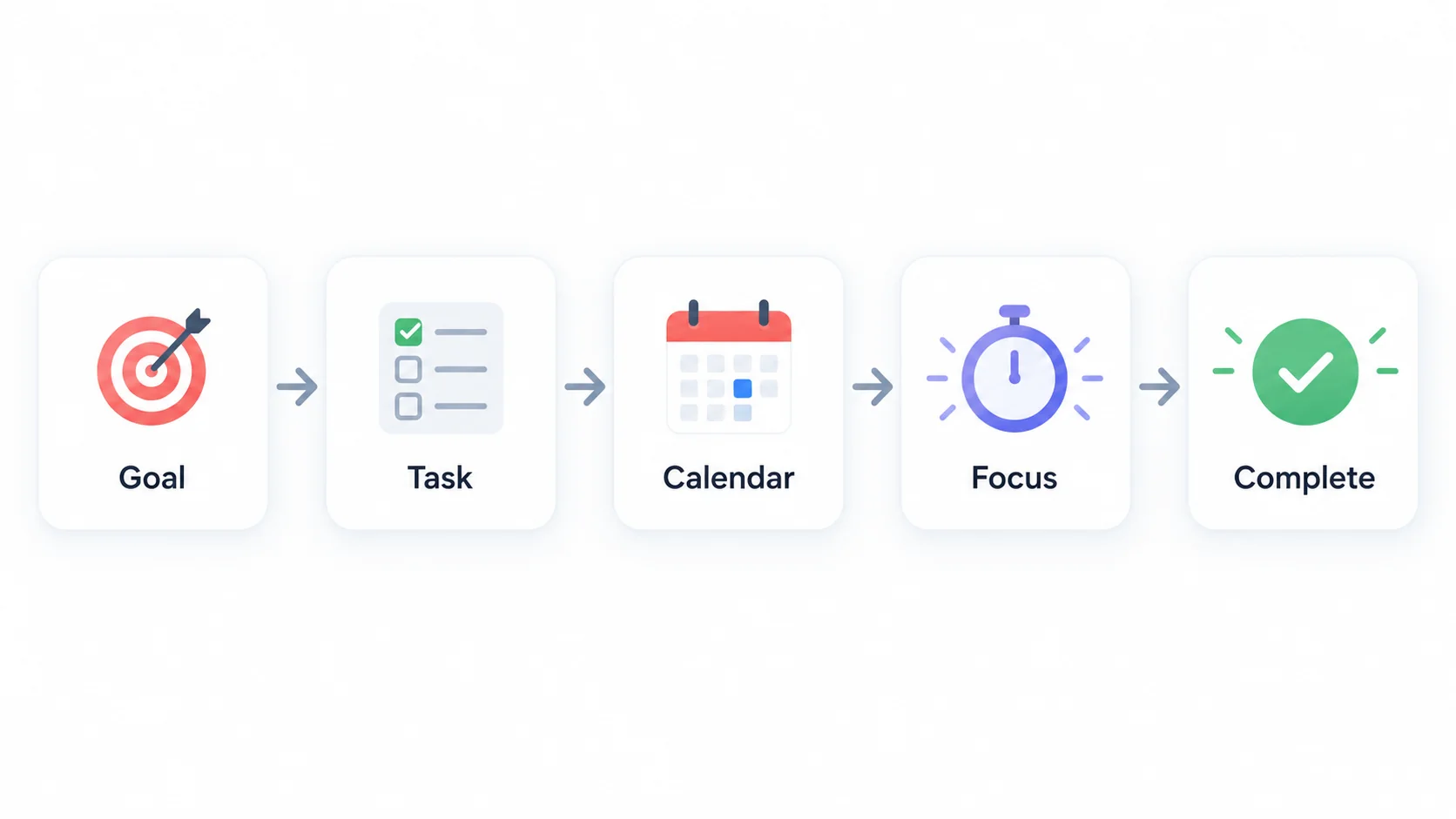
Goal: Launch a new website
↓
Task: Write pricing page
↓
Calendar: Tuesday, 2:00–2:45 PM
↓
Focus session: Write pricing page — 45:00
This is the workflow BreakToGoal is designed around.
The goal gives the work direction.
The task turns the goal into something executable.
The calendar gives the task a place in time.
The focus session helps you actually do it.
Instead of treating planning and focusing as separate activities, they become different stages of the same process:
You do not need that entire system every time you start a countdown.
But when today's focus session belongs to something you care about finishing over weeks or months, connecting it back to the task and goal makes the work easier to understand.
Task timer vs. Pomodoro timer
The two approaches overlap, but they start from different places.
A Pomodoro timer usually starts with a predefined work interval:
25 minutes → work → break → repeat
A task timer starts with the work:
What am I doing? → how long do I want to give it? → start
Neither approach is inherently better.
Pomodoro can be helpful if you want a consistent rhythm of working and resting.
A task-based timer can be more natural when:
- you already know what task you need to do;
- your tasks vary significantly in length;
- you use time blocking;
- you work from a calendar;
- you want the task name visible while you focus;
- you don't want every session forced into the same interval.
You can also combine the two. A specific task can easily become a 25-minute session if that duration works for you.
Try a simple focus session
If you want to try this workflow, keep the first session simple.
Pick something you can make progress on today.
Give it a name.
Choose 20, 30, 45, or 60 minutes.
Then start the countdown and stay with that one task until the session ends.
If the session is part of your plan, add it to your BreakToGoal calendar so you can return to the same focus workflow when it is time to work.
The goal isn't to spend more time managing your productivity.
It is to make the next action easier to start.
Frequently Asked Questions
Can I start a timer for a specific task?
Yes. Give the focus session a task name, choose its start and end time, and start the countdown. Keeping the task name next to the remaining time makes it clear what the session is for.
Can I use a task timer in fullscreen?
Yes. BreakToGoal provides a full-page focus view with a large countdown and your current task. Your browser controls remain available, so it does not force the browser itself into native fullscreen mode.
Does a task timer have to be 25 minutes?
No. A task timer can be any length that makes sense for the work you want to do. You might use 15 minutes for a small task, 45 minutes for writing, or 60 minutes for deeper work.
Is a task timer the same as a Pomodoro timer?
Not exactly. Pomodoro normally uses predefined work and break intervals. A task timer starts with a specific task and lets you choose a focus period that fits it.
Can I add my focus session to a calendar?
Yes. In BreakToGoal, you can use the timer on its own or choose Use in calendar to save the original start and end times as a calendar event.
Do I need an account to use the timer?
No. You can open and use the Full Screen Countdown Timer without signing in. An account is only needed when you want to save the session to your BreakToGoal calendar.
Share this post
About the Author
BreakToGoal Team
Passionate about productivity, time management, and helping people achieve their goals through innovative approaches.